Fix broken line breaks copied from a PDF
Join wrapped PDF lines and a discretionary hyphen without gluing the next real paragraph onto the same sentence.
The break is the column width, not the sentence
Copy a paragraph out of a PDF and you usually get a hard return every few words, plus a hyphen where a word was split to fit the line. A blunt “remove all line breaks” tool then either leaves the hyphen stranded or melts every heading and paragraph into one block. The useful fix is narrower: join wraps inside a paragraph, rejoin a discretionary hyphen, and keep the gap that was actually a new paragraph.
Both toggles are on by default. Rejoin hyphenated line breaks and Merge broken paragraphs are independent. Either one can be turned off, and the file already in memory is converted again in the tab.
Steps
- Open the converter and leave Rejoin hyphenated line breaks and Merge broken paragraphs checked.
- Drop a text PDF, or use the surveyor sample linked on this page. You can also paste text, but a paste has no font positions, so paragraph gaps are blank lines you type, not vertical gaps from the page.
- Read the Markdown. A word that was split with a hyphen at the line end should be one word, and a later paragraph should still be its own block.
- If two topics were glued together, uncheck Merge broken paragraphs and convert again from memory.
- If a hard hyphen was removed, uncheck Rejoin hyphenated line breaks, convert again, and put the hyphen back where the sentence needs it.
Worked example
The sample hyphen.pdf is three 12 point lines. The first ends with “measure-” and sits at y 720. The next starts with “ment” and sits 14 points lower. A third sentence sits 46 points below that. With both toggles off, the converter keeps the visual breaks. This is that output:
Before noon the surveyor carefully checked every single measure-

ment twice and wrote both readings in the logbook.

A later paragraph stays separate because the gap is wide.
With paragraph merge on and hyphen repair off, the close lines join with a space, so the hyphen remains and a space appears before “ment”:
Before noon the surveyor carefully checked every single measure- ment twice and wrote both readings in the logbook.

A later paragraph stays separate because the gap is wide.
With both on, which is the default, the hyphen is removed and nothing is inserted, and the distant sentence stays its own paragraph:
Before noon the surveyor carefully checked every single measurement twice and wrote both readings in the logbook.

A later paragraph stays separate because the gap is wide.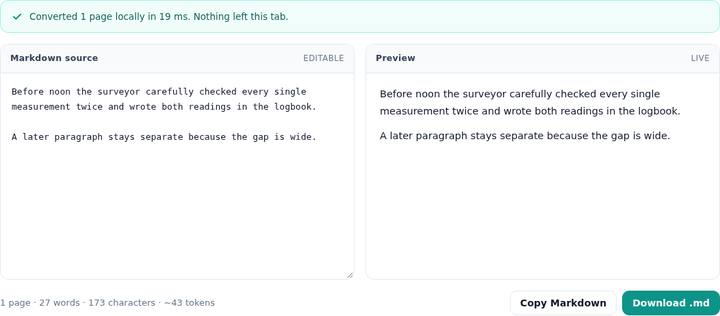
The two rules, separately
Merge looks at the distance to the previous line. The distance is compared with about 1.7 times the larger font size on the pair. At 12 point type that threshold is about 20 points. The 14 point step from “measure-” to “ment” is inside the threshold, so those lines are one paragraph. The 46 point step down to the later sentence is outside it, so a blank line is kept in the Markdown. A line the column logic marks as a forced break, such as the start of a column or a full-width title, also starts a new block even if the raw distance is small.
Hyphen repair runs only while joining. The previous fragment must end with an ASCII letter and a hyphen. The next fragment must start with a lowercase letter. The hyphen is deleted and the fragments are concatenated, which is why “measure-” and “ment” become “measurement” with no space. “US-” followed by “Mexico” does not match, because M is uppercase, and the pieces stay apart. A hyphen between digits is not repaired by this rule.
The same join is what a careful paste-cleanup does by hand, except the PDF path can see the gap on the page instead of guessing from blank lines. The paste panel has no coordinates. There, a blank line you leave in the box is the paragraph break, and wrapped lines that you paste as separate lines with no blank between them are joined when merge is on.
Where the repair is wrong
The tool cannot see a discretionary hyphen in the font and a hard hyphen that the author typed as different kinds of characters. If a real compound was split as “state-” plus “owned” you will get “stateowned”, which is wrong. Turn hyphen repair off, convert again, and fix that word. You should also scan for a heading that sat close under the previous paragraph and got pulled into it because the gap was under the threshold and the line was not recognized as a heading.
Lists are pulled out before the paragraph join, so a line that starts with a bullet or a number is not glued onto the sentence above it. A wrap inside a list item can still join. Code and poetry that need every line preserved should be converted with merge off. Two-column pages are ordered before this join, which is why a line at the bottom of the left column is not glued to the top of the right column. That layout has its own guide.
Questions
Why does copied PDF text have a break on every line?
The viewer copies the visual line endings. Those breaks are where the text was wrapped for the column width, not where the author ended a paragraph.
Will every hyphen at a line end be removed?
Only when hyphen repair is on, the line ends with a letter and a hyphen, and the next line starts with a lowercase letter. The hyphen is deleted and no space is inserted. A capital letter after the break is left alone.
How does the tool tell a wrap from a new paragraph?
On a PDF it uses the vertical gap. A gap larger than about 1.7 times the font size starts a new paragraph. A smaller gap is a wrap and the lines are joined with a space, unless a hyphen repair consumed the break.