Convert a PDF to Markdown for Obsidian
Make a local Markdown note from a text PDF and drop the .md file into an Obsidian vault, without an upload step or a plugin.
A vault note is just a Markdown file
Obsidian stores notes as Markdown files on disk. A PDF dropped into a vault stays a PDF. It does not become an outline you can link, search as plain text in the same way, or fold by heading. The job is to produce one .md file whose headings match the document, then move that file into the vault folder. Community plugins and local Python tools can do this too. This page is the no-install path: convert in the browser, download, and copy the file yourself.
The conversion does not upload the PDF. The .md file is created on your machine. Putting it in a vault is a local copy. If your vault is synced by a third-party sync plugin, that sync is your choice after the file exists, and it is outside this converter.
Steps
- Open the converter and drop a text-based PDF. Leave the heading and paragraph options on if you want an outline Obsidian can fold.
- Read the preview. Fix a bad heading or a broken word in the Markdown box. The preview updates as you type.
- Download the .md file. For several PDFs, use Download .zip and you get pdftomd-batch.zip of one Markdown file per PDF.
- Move the .md file into a folder inside your vault. Obsidian picks up a new note without a restart.
- Add your own wikilinks or properties after the file is in the vault. This converter does not invent them.
Worked example
The sample headings.pdf is a short note: a 22 point title, two 16 point section labels, and 11 point sentences under each. It is the kind of one-page handout that should become one vault note, not a pile of wrapped lines. This is the Markdown:
# Kitchen Inventory

## Dry goods

Oats, rice, and lentils are stored in metal tins on the low shelf.

## Tools

The small scale sits beside the kettle and is checked each Monday.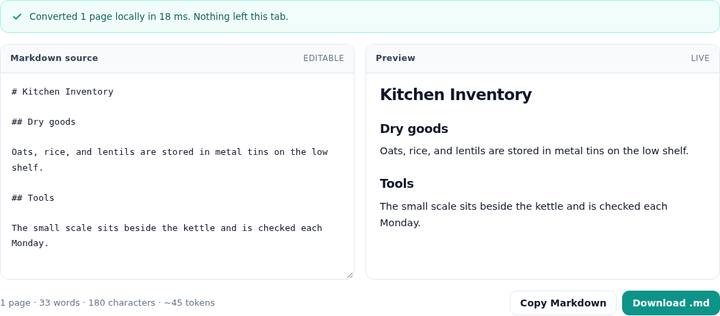
Save it as something like Kitchen Inventory.md. In Obsidian the title line is the level-one heading, Dry goods and Tools are level two, and the sentences are paragraphs you can link from other notes. The tool did not add YAML frontmatter, tags, or wikilinks. Add those after you know what the note should connect to. Inventing [[Kitchen Inventory]] links from a PDF would be a guess.
Several PDFs, one folder
Drop more than one PDF on the converter and a batch list appears. Each file can be downloaded as its own .md, named from the PDF name with the extension swapped, or you can download one zip called pdftomd-batch.zip. The zip is built in the page. It is a stored archive of those Markdown files, not a request to a server. Unzip it into a vault folder if you are bringing in a small set of handouts. Two tiny samples, batch-a.pdf and batch-b.pdf, exist so you can see the list without using a private file. They each contain one sentence.
A research paper or a long memo still needs a look before it becomes a permanent note. Heading levels follow font size, two columns are read left then right when the gutter is clear, and a repeated page title can be stripped. Those behaviors have their own guides. Obsidian will faithfully show a bad heading hierarchy if you save it, so fix the source box first. The box is editable and the preview is the rendered note, which is close to what the vault will show for plain Markdown.
What you will still clean up
There is no image export and no OCR. A scanned handout produces an empty note and a warning, not a transcript. Footnotes stay where the text layer put them. A line that was bold but not larger becomes bold Markdown, not a heading, so a bold label in the PDF may look quieter in the vault until you add a # yourself. Page numbers that were not at the edge can remain. Delete them in the source box before you download.
Do not expect the file to satisfy a particular vault theme, Dataview query, or citation plugin. The output is CommonMark plus pipe tables. If a plugin wants a specific property key, you type that key. The point of this path is a private .md you can file, not a conversion that rewrites your vault conventions.
Questions
Does this install an Obsidian plugin?
No. You get a normal .md file from the browser tool and you put that file in the vault yourself. No plugin, no Python package, and no extra installer is required for this path.
Will Obsidian render the tables and headings?
Yes for ordinary Markdown. A pipe table is GitHub-flavored Markdown, which Obsidian renders as a table. Lines that start with # become the outline. This tool does not emit Obsidian callouts or embed syntax.
Are images from the PDF copied into the vault?
No. Only text is extracted. A figure is skipped. If the page has no text layer, the note will not contain that page, and the converter says so instead of guessing words.